Watchtime Badge is designed with user privacy as the top priority, with its defining feature being “No mechanism to send data externally.”
However, asking “Can I really trust that?” is a very healthy and correct attitude for web safety. Instead of just saying “Trust us,” we say “Here is how you can verify it.” In this article, we will guide you through the steps to use your browser’s Developer Tools to prove that this extension is truly silent (Zero Network Usage).
How Verification Works
Normally, if you check the network logs while watching YouTube, you will see a massive amount of traffic generated by YouTube itself (video loading, ads, etc.), making it difficult to spot any traffic from extensions.
Therefore, we will use a method to monitor only the Extension itself (Background Worker). This isolates the data, allowing you to see the truth without any noise.
For Chrome / Edge Users
Step 1: Open the Extensions Management Page
- Type
chrome://extensionsin your browser’s address bar and press Enter. - You will see a list of your installed extensions.
- Toggle the “Developer mode” switch in the top right corner to ON.
- Note: The verification link in the next step will not appear unless this is turned on.

Step 2: Open the Background Verification Window
- Find the Watchtime Badge card in the list.
- Click the link labeled
service worker(orbackground page) located next to “Inspect views” inside the card.
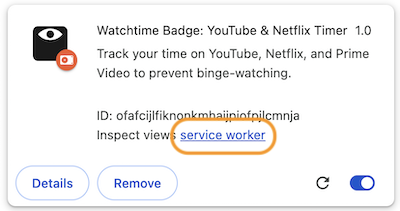
A new window called “DevTools” will open. This is the monitor for what’s happening behind the scenes of Watchtime Badge.
Step 3: Verify Network Traffic & Load Test
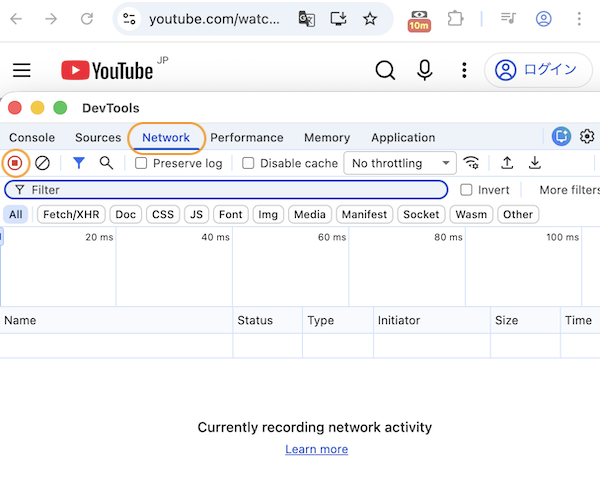
- Click the “Network” tab at the top of the new DevTools window.
- Confirm that the red recording button in the top left is red (recording).
- At this point, this window should be completely empty.
- Load Test: Play a video on YouTube in your main window and confirm that nothing appears in this list.
For Firefox Users
Step 1: Open the Debugging Page
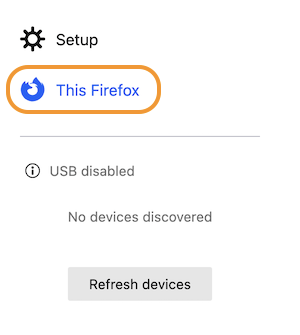
- Type
about:debuggingin the address bar and press Enter. - Click “This Firefox” from the menu on the left.
Step 2: Inspect the Extension
- Find Watchtime Badge in the list.
- Click the “Inspect” button.

This will open the Developer Tools in a new tab or window.
Step 3: Verify Network Traffic & Load Test
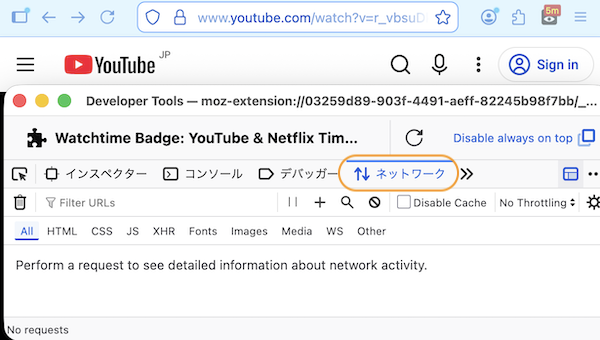
- Click the “Network” tab at the top of the tool.
- Just like in Chrome, verify that this list is empty.
- Load Test: Play a video on YouTube in your main window and confirm that nothing appears in this list.
Conclusion and Results
Regardless of which browser you use, the Network tab should remain completely empty.
If this app were sending your viewing data to an external server, you would see request logs here such as analytics.google.com or other tracking domains.
The fact that this is “Empty” is the technical proof that Watchtime Badge has “Zero Network Usage” and is not taking your data anywhere.
We believe that transparency is the ultimate security. Enjoy your binge-proof life with peace of mind!
Technical Note
- Permissions: This extension uses only the
storagepermission and does not request host permissions for external domains (Manifest V3 compliant). - Source Code: Developers who want to dig deeper can audit the source code on our GitHub Repository .